If you’ve ever looked at Google Analytics and seen half your traffic sitting in “Unassigned” or “Direct,” the problem usually isn’t your analytics setup. It’s your links. A campaign without proper UTM tagging is basically invisible – GA4 can’t tell you whether that sale came from your email blast, your Instagram story, or a random bookmark. This cheat sheet lays out every UTM parameter, the exact values marketers actually use for each channel, and the naming rules that keep your reports clean instead of turning into a spreadsheet full of duplicate rows.
Bookmark it, or better yet, pair it with the UTM builder so you’re not retyping the same source/medium combinations from memory every time you launch a campaign.
What a UTM Parameter Actually Does
A UTM parameter is a small snippet of text tacked onto the end of a URL after a question mark. It doesn’t change where the link goes or what the page looks like – it just rides along and tells your analytics platform where the click came from.
Take this URL:
https://yourstore.com/summer-sale?utm_source=facebook&utm_medium=paid_social&utm_campaign=summer_sale_2026
Everything after the ? is UTM data. When someone clicks it, GA4 reads those tags and files the resulting session under Facebook, paid social, and the summer sale campaign. Strip the tags off and that same click just looks like a stranger who typed your URL in from nowhere.
UTM stands for Urchin Tracking Module – a leftover name from Urchin Software, the analytics company Google bought back in 2005. The acronym is trivia at this point; what matters is that every major analytics platform, from GA4 to HubSpot to your ad server, still reads these same five tags today.
The 5 UTM Parameters, Explained
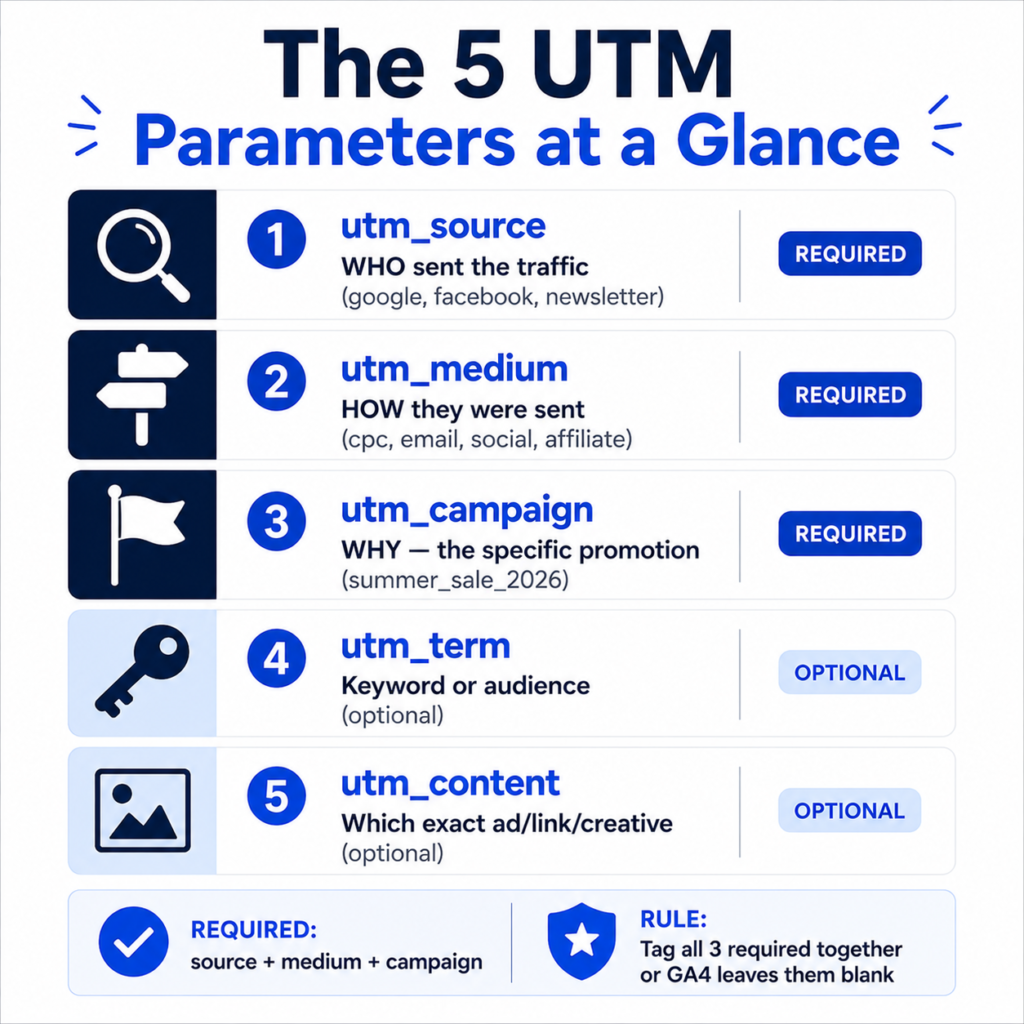
There are five standard parameters. Three are required for any campaign you actually want to measure. Two are optional and add detail once you’re past the basics.
| Parameter | What It Tracks | Required? | Example |
| utm_source | The platform or site sending the traffic | Yes | utm_source=google |
| utm_medium | The type of channel (paid, email, social, etc.) | Yes | utm_medium=cpc |
| utm_campaign | The specific campaign or promotion name | Yes | utm_campaign=black_friday_2026 |
| utm_term | Paid search keyword or audience segment | Optional | utm_term=running+shoes |
| utm_content | Which specific ad, link, or creative was clicked | Optional | utm_content=header_cta |
A simple way to think about it: source is who sent the visitor, medium is how they were sent, and campaign is why. Term and content exist for when “why” isn’t specific enough – like when you’re running three versions of the same ad and need to know which one is actually pulling its weight.
One behavior catches a lot of people off guard: the moment GA4 sees even one UTM parameter on a URL, it stops reading the referrer entirely and relies only on your tags. So if you tag utm_campaign but forget utm_source and utm_medium, those fields don’t fall back to “whatever GA4 would have guessed” – they just come back blank. Partial tagging is often worse than no tagging.
UTM Parameter Cheat Sheet by Channel
This is the part people actually bookmark. Below are the standard, GA4-friendly values for each major channel. Stick to these unless you have a specific reason not to – GA4’s default channel grouping logic is built around recognizing common medium values, and going off-script is the fastest way to end up in “Unassigned.”
Google Ads
Google Ads has native auto-tagging through GCLID, so you generally don’t need manual UTMs for standard search or display campaigns run inside Google Ads – GA4 picks it up automatically once auto-tagging is enabled. Manual UTMs are still useful for cross-checking data or for campaigns run through third-party ad platforms that display Google inventory.
| Field | Value |
| utm_source | |
| utm_medium | cpc |
| utm_campaign | spring_promo |
| utm_term | running+shoes |
| utm_content | text_ad_v1 |
Meta (Facebook & Instagram)
Meta has no native GA4 auto-tagging, so manual UTMs here are non-negotiable if you want clean attribution.
| Field | Value |
| utm_source | facebook or instagram |
| utm_medium | paid_social |
| utm_campaign | retargeting_q3 |
| utm_content | carousel_ad_2 |
Meta Ads Manager also supports dynamic URL macros at the ad-set or ad level, so a single template like utm_campaign={{campaign.name}}&utm_content={{ad.name}} auto-fills with the actual campaign and ad names at click time. Worth setting up once if you’re running more than a handful of ads.
| Field | Value |
| utm_source | Your ESP or brand name, e.g. mailchimp, klaviyo, or newsletter |
| utm_medium | |
| utm_campaign | august_newsletter |
| utm_content | cta_button or hero_image |
Keep utm_medium=email consistent across every email tool you use. It’s tempting to write newsletter here instead, but that string doesn’t match GA4’s recognized medium values – put “newsletter” in the campaign name instead and keep the medium clean.
| Field | Value |
| utm_source | |
| utm_medium | paid_social (ads) or social (organic posts) |
| utm_campaign | b2b_leadgen_q4 |
| utm_content | sponsored_post_1 |
Organic Social (X, TikTok, Pinterest, etc.)
| Field | Value |
| utm_source | twitter, tiktok, pinterest, etc. |
| utm_medium | social |
| utm_campaign | product_launch |
| utm_content | bio_link or pinned_post |
YouTube
| Field | Value |
| utm_source | youtube |
| utm_medium | video or paid_social for YouTube Ads |
| utm_campaign | brand_awareness_2026 |
| utm_content | description_link |
Affiliate & Influencer
| Field | Value |
| utm_source | The affiliate network or influencer’s handle |
| utm_medium | affiliate or influencer |
| utm_campaign | partner_name_launch |
| utm_content | story_link or bio_link |
This is one of the more underused corners of UTM tracking. If you’re running an influencer program, tagging each creator’s link individually (rather than one shared link for everyone) is the only way to know which partnerships are actually worth renewing.
QR Codes, Print, and Offline
| Field | Value |
| utm_source | Describe the physical placement, e.g. flyer, storefront, packaging |
| utm_medium | qr_code or print |
| utm_campaign | in_store_promo_q2 |
Generate the tagged link first, then feed it into a QR code generator so the scan itself carries full attribution. It’s a small step people skip, and then wonder why in-store traffic never shows up anywhere in their reports.
Naming Convention Rules That Actually Matter
Most broken UTM reports aren’t broken because someone forgot to tag a link. They’re broken because ten different people tagged links ten different ways. A few rules fix almost all of it:
- Lowercase everything, always. GA4 treats utm_source=Google and utm_source=google as two separate values. One capital letter and your Google traffic splits into two rows.
- Use hyphens or underscores instead of spaces. A space in a URL gets encoded as %20 or a plus sign, and GA4 reads it literally rather than as a word separator. summer sale becomes a mess; summer-sale doesn’t.
- Pick one separator and stick with it. Hyphens or underscores, doesn’t matter which – what matters is that your whole team uses the same one. Mixing them creates duplicate campaign names in your reports that are actually the same campaign.
- Keep utm_medium values from a short, fixed list. Something like cpc, paid_social, email, social, affiliate, referral, display. If you’re inventing a new medium value for every campaign, GA4’s channel grouping has nothing to match it against.
- Build a shared naming doc before you build links. Even a simple spreadsheet with your approved source/medium combinations saves hours of cleanup later. It sounds unnecessary until someone on your team tags a campaign utm_source=FB while everyone else has been using facebook.
Common Mistakes That Break GA4 Reporting
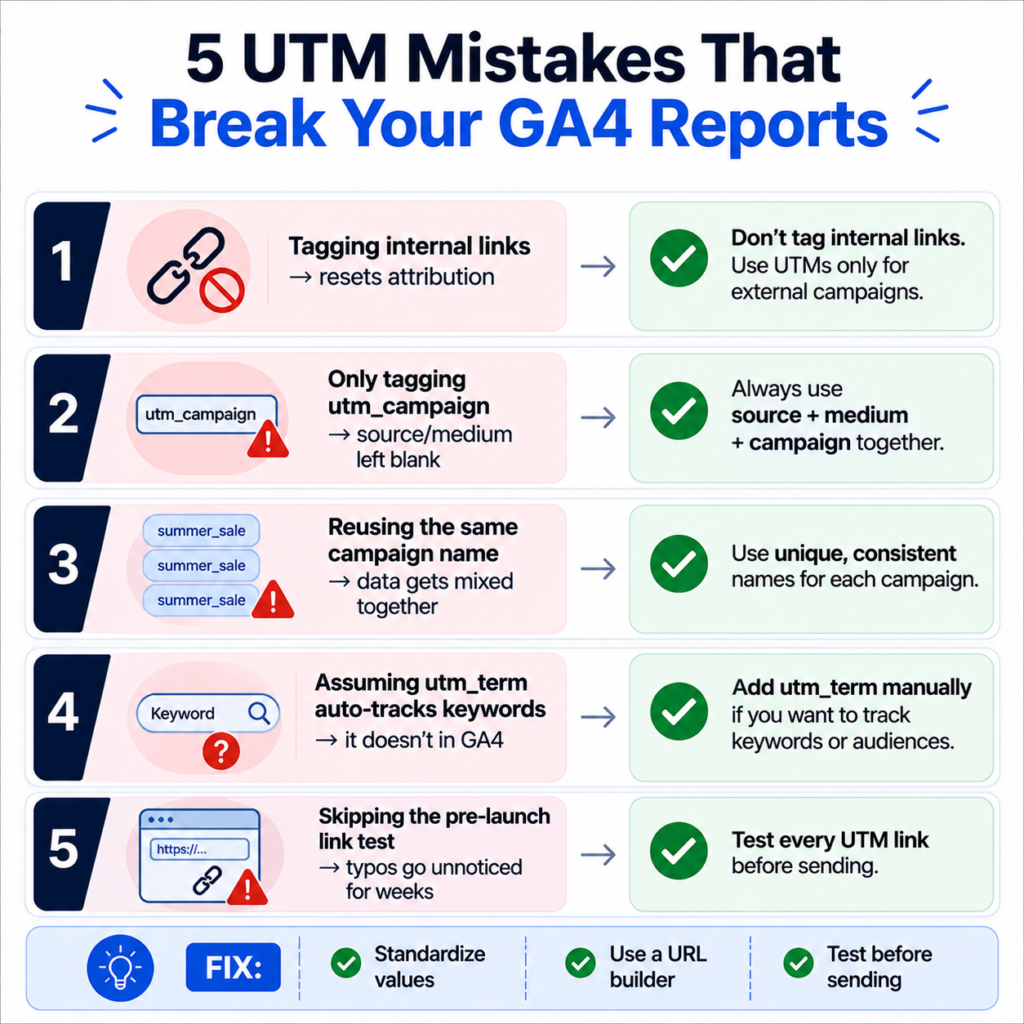
- Tagging internal links. Adding UTM parameters to a link on your own homepage that points to another page on your own site resets the session’s attribution, overwriting the real source with your own site as the “source.” Only tag links that live outside your domain.
- Forgetting utm_source or utm_medium while still including utm_campaign. As mentioned earlier, GA4 won’t fill in the blanks from the referrer once any UTM tag is present. Always tag all three required parameters together, never just one or two.
- Reusing the same utm_campaign value across unrelated campaigns. It feels efficient in the moment, then six months later you can’t tell which “spring_promo” drove which results.
- Letting utm_term default to Google’s auto-tagging expectations. In GA4, utm_term isn’t automatically wired to keyword-level reporting the way it was in Universal Analytics – keyword data now depends on Google Ads auto-tagging or a deliberate manual setup. Don’t assume it “just works.”
- Not double-checking links before they go live. A single typo in utm_campaign creates a new, separate campaign row in your data rather than an error message. There’s no warning – just a silently fragmented report three weeks later.
How to Build UTM Links Without the Manual Errors
Typing these out by hand in a URL every time is how inconsistencies creep in. The more reliable approach:
- Standardize your source/medium/campaign values ahead of time in a shared doc.
- Use a UTM builder to generate the link so parameters are formatted, lowercase, and correctly encoded automatically.
- Test the link before sending – paste it into a browser and confirm it lands on the right page.
- Store the finished link somewhere your team can find it later, so nobody rebuilds the same campaign URL from scratch next quarter.
If you’re running UTM-tagged links that also need to look clean when shared (say, in a print ad or on a business card), a URL shortener or slug generator can help there too – just make sure the shortened version still points to the fully tagged destination URL, not a stripped-down one.
Where to Actually Find This Data in GA4
Once links are tagged and traffic starts coming in, UTM data shows up in Reports > Acquisition > Traffic Acquisition or User Acquisition, and in more detail inside Explorations if you want to build a custom breakdown by source, medium, and campaign together. Advanced users pulling data into BigQuery will see utm_source stored under the manual_source field rather than a literal column named utm_source – worth knowing if your queries come back empty for no obvious reason.
If you’re tracking multiple campaigns across channels and don’t want to live inside GA4’s native reports for every check-in, pulling the numbers into a marketing KPI dashboard makes it easier to compare campaign performance side by side without re-exporting data every week.
The Newer GA4-Specific Parameters (Optional but Useful)
Beyond the standard five, GA4 supports three additional parameters that most marketers never touch, but they solve real problems once campaigns scale:
| Parameter | What It Does |
| utm_id | A stable campaign ID number. Campaign names get renamed mid-flight all the time – “Spring Sale” becomes “March Promo” – which breaks any report built on utm_campaign matching. The ID doesn’t change, so it protects your historical data from human error. Also required if you’re importing ad cost data into GA4. |
| utm_source_platform | Identifies the platform managing the traffic at a higher level, mainly used internally by Google Ads auto-tagging, but settable manually for other platforms. |
| utm_creative_format | Describes the ad format (video, display, carousel) for more granular creative-level reporting. |
These aren’t necessary for a small campaign or a single email send. They start paying off once you’re running paid campaigns at scale and need attribution that survives someone renaming a campaign in Google Ads without warning the analytics team.
One Thing UTM Tagging Can Break: Duplicate URLs
A side effect of UTM tracking that rarely gets mentioned: every unique combination of parameters technically creates a different URL, even though it’s the same page. Search engines can sometimes index these as separate pages, which isn’t great for SEO. Two ways to avoid it: set a canonical URL on the destination page pointing to the clean, untagged version, or run a bulk URL parameter remover if you’re auditing a site and finding a pile of UTM-tagged URLs sitting in your crawl data. Neither takes long, and both save you from duplicate content flags down the line.
Quick-Reference Cheat Sheet
| Channel | utm_source | utm_medium |
| Google Ads | cpc | |
| Meta Ads | facebook / instagram | paid_social |
| LinkedIn Ads | paid_social | |
| Organic social post | twitter / tiktok / pinterest | social |
| Email newsletter | your ESP or brand name | |
| YouTube video | youtube | video |
| Affiliate link | partner or network name | affiliate |
| Influencer post | creator handle | influencer |
| QR code / print | flyer / storefront / packaging | qr_code |
Once traffic starts flowing in from tagged campaigns, checking how those links actually perform – click-through rate, cost per click, return on ad spend – closes the loop. Tools like the CTR calculator or ROAS calculator are useful next steps once you know which channel each visitor came from.
Frequently Asked Questions
Do I need all five UTM parameters on every link?
No. utm_source, utm_medium, and utm_campaign are the minimum for usable attribution. utm_term and utm_content are worth adding when you’re testing keywords or creative variants specifically.
Will UTM parameters affect my SEO or page load?
No, they don’t change the page itself or slow anything down. The only real concern is duplicate URL indexing, which a canonical tag handles.
Should UTM parameters be capitalized to match my brand name?
No. Keep every parameter lowercase, even if your brand name is normally capitalized. GA4 treats different capitalizations as different values.
Can I use UTM parameters on internal links?
Avoid it. Tagging a link from one page on your site to another resets the visitor’s original source in GA4, overwriting real attribution data with your own domain.
Why is my UTM traffic showing up as “Unassigned” in GA4?
Usually because utm_medium doesn’t match a value GA4 recognizes, or because one of the three required parameters is missing while another is present. Stick to standard medium values like cpc, email, social, and paid_social.